

PDF editing applications are a practical solution for those of you who often work or study using digital documents.
With this application, you can add text, highlight, sign documents, and even delete pages without having to reprint the file.
In this article, you will find various best free PDF editing applications, both those that can be used online and offline, on laptops and on mobile phones.
In addition, there are also tutorials on how to use each application so you can immediately practice without being confused.
Come on, read the article until the end!
Table of Contents
16 Best Free PDF Editing Apps for Laptops in 2026
1. Adobe Acrobat Reader
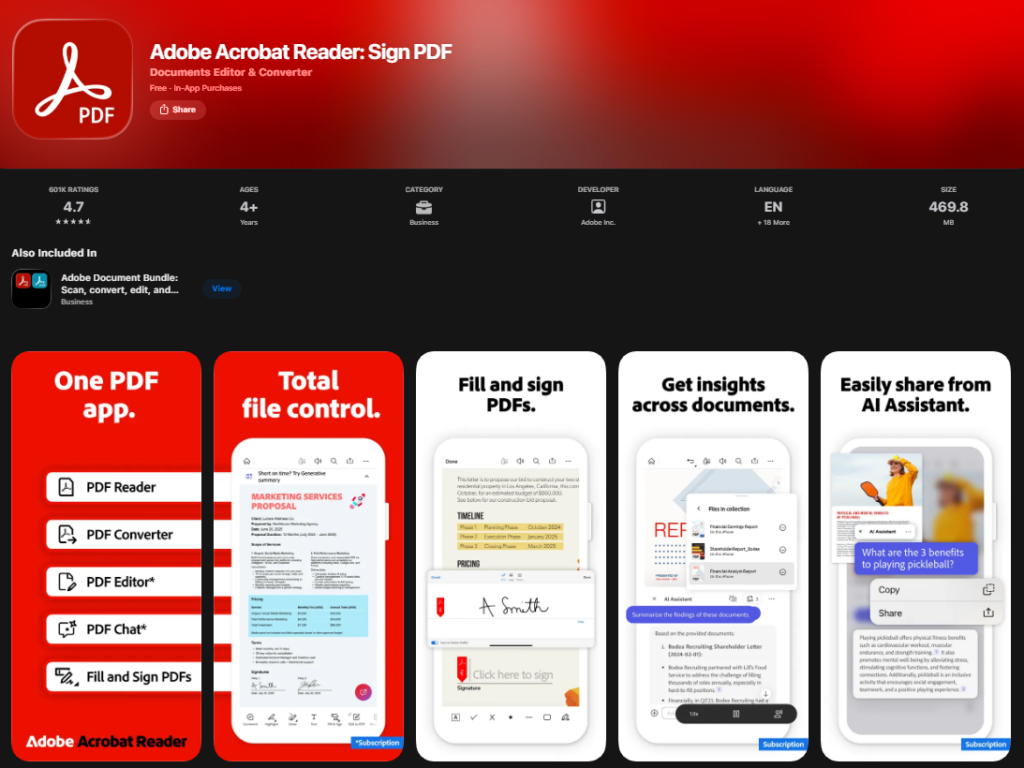
Adobe Acrobat Reader is the most popular application for reading and editing PDF files. Besides desktop use, the mobile version is also quite reliable.
You can add text, highlight sentences, sign documents, and even merge or split PDF files. It’s easy: just open the file and select the required tools.
How to use it :
- Open PDF files through the application.
- Select the “Fill & Sign” or “Comment” feature to edit as needed.
- Save the edited file to your device.
2. PDFescape
PDFescape is a web-based PDF editor that requires no installation. It’s perfect for those who want quick, hassle-free editing.
You simply upload a PDF document and can immediately add text, delete sections, or insert images. The free version is also comprehensive enough for basic use.
How to use it :
- Visit pdfescape.com .
- Select “Free Online” and upload your PDF file.
- Add elements such as text, checkboxes, or scribbles.
3. Sejda PDF Editor
Sejda offers a clean interface and powerful features. You can use the online version or download the app. The free version can handle files up to 200 pages or a maximum size of 50 MB.
How to use it :
- Go to Sejda.com .
- Select “Edit a PDF document” and upload your PDF file.
- Add text, images, or shapes as needed, then save.
4. Smallpdf
Smallpdf is renowned for its user-friendliness. The application is available in both online and desktop versions.
Simply drag and drop your files onto the site, then select the edit feature. You can add annotations, fill out forms, and even delete specific pages.
How to use it :
- Go to Smallpdf.com .
- Click “Edit PDF” then upload your document.
- Make edits, then click “Apply” and download the results.
5. PDF-XChange Editor
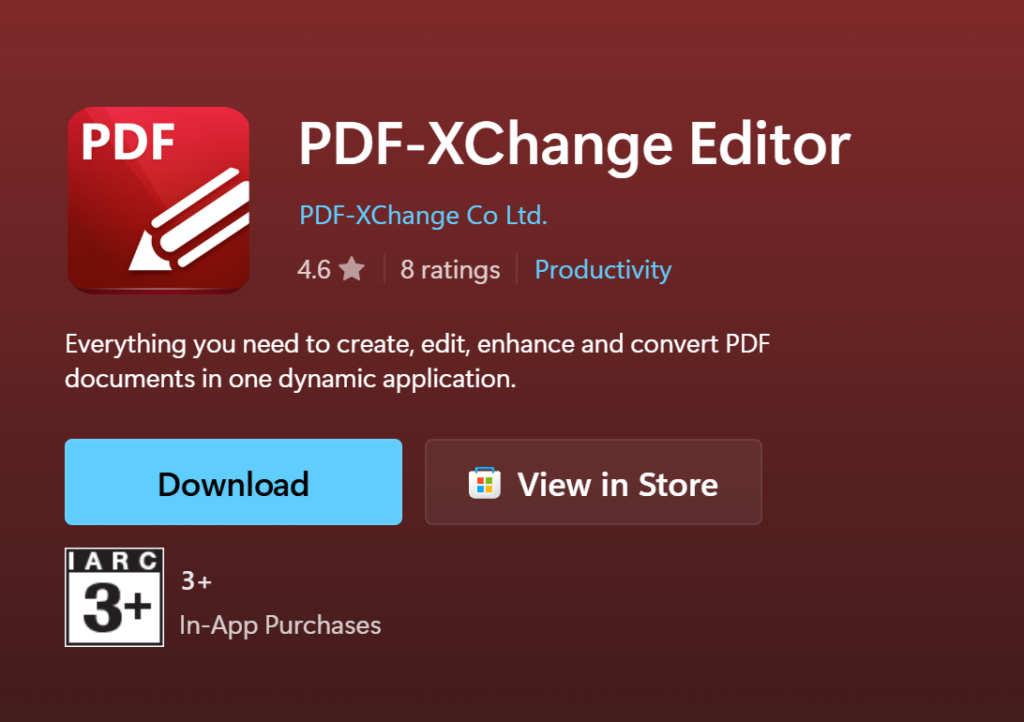
PDF-XChange offers a variety of features such as highlighting text, editing content, and even performing OCR (optical character recognition).
Despite its technical appearance, this application is quite lightweight and fast. You can also save your edits directly in a new PDF format.
6. Foxit PDF Editor
Foxit is known as a lightweight alternative to Adobe Acrobat. Its applications are quite sophisticated and reliable for professional needs.
You can edit text directly in the document, add notes, and easily adjust the page layout.
How to use it :
- Open PDF files in Foxit.
- Use the available text, image, or form editing features.
- Save the results directly to your device.
7. Nitro PDF Pro
Nitro PDF Pro is widely used by professionals because it is stable and has complete features.
You can edit text, merge files, digitally sign, and convert documents. The interface is also familiar to Microsoft Office users.
How to use it:
- Open the PDF file in the Nitro PDF application.
- Click the Edit tab, then select Edit Text or Edit Image as needed.
- Click on the text or image you want to edit, then change it directly on the page.
- To add a new element, use the Add Text or Add Image menu.
- Once finished, click File > Save to save your edits.
8. iLovePDF
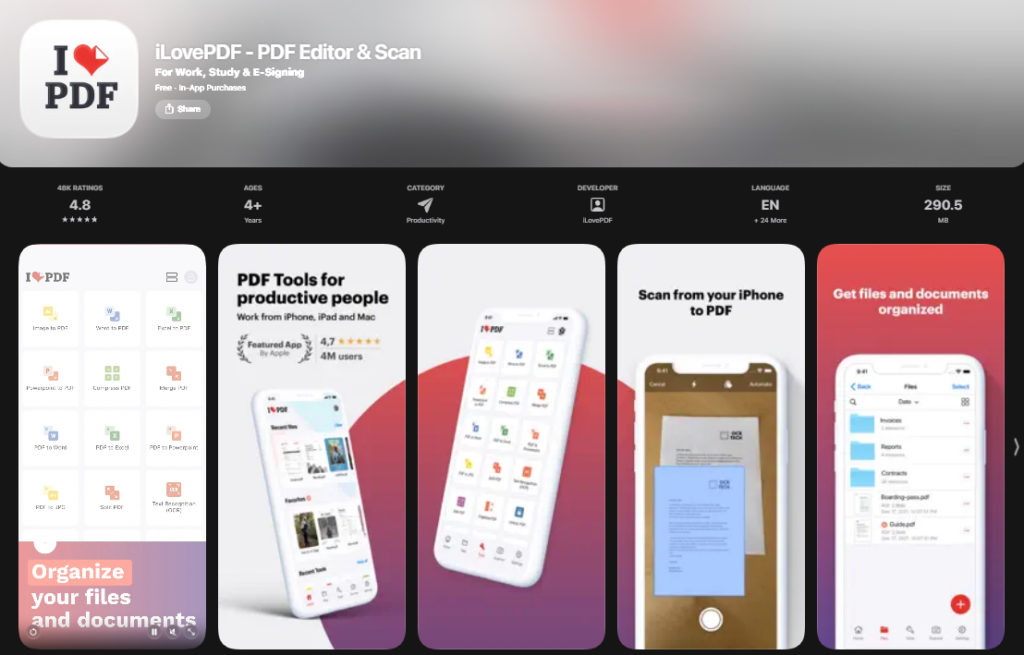
iLovePDF provides PDF editing services directly from the browser and also mobile applications.
You can merge, split, rotate, and even compress files. The process is fast and very user-friendly for new users.
How to use it :
- Go to ilovepdf.com .
- Select the “Edit PDF” menu.
- Edit the document as needed and download the result.
9. Adobe Acrobat Reader
Adobe Acrobat Reader is known as a pioneer in the PDF world. While the free version is limited, you can still fill out forms and add comments or signatures.
How to use it :
- Open PDF files through the application.
- Select the “Fill & Sign” or “Comment” feature to edit as needed.
- Save the edited file to your device.
10. PDF Buddy
PDF Buddy is a web-based PDF editor that is very easy to use and suitable for beginners.
Simply upload a file and start adding signatures, text, or forms. No account is required for basic use.
How to use it :
11. Soda PDF
Soda PDF has comprehensive editing features and good cloud support, such as Google Drive and Dropbox.
This application also supports both online and offline modes, suitable for both personal and professional use.
How to use it :
- Go to sodapdf.com .
- Select the edit menu then upload the PDF file.
- Edit content and download the results.
12. WPS Office
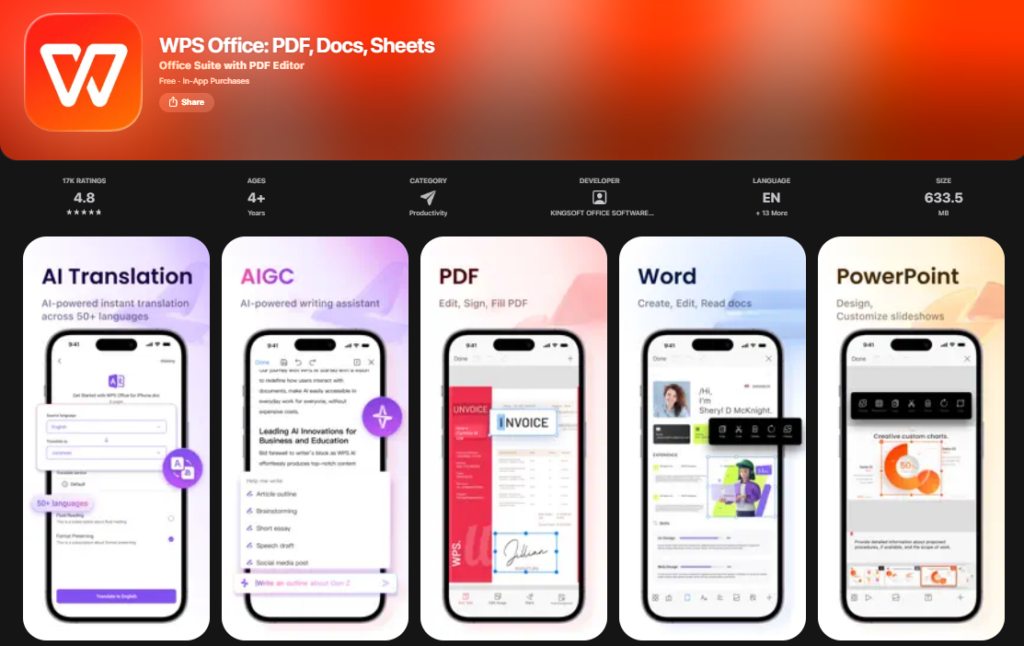
WPS Office is a lightweight alternative to Microsoft Office that has a built-in PDF editing feature.
Simply open a PDF file using WPS, then you can add text, images, or fill out forms easily.
How to use it :
- Open PDF files via WPS app.
- Select the “Edit” option and then start changing the text or adding annotations.
- Save the document to PDF again.
13. Xodo PDF
Xodo is very popular among mobile users. Its lightweight app is perfect for reading and annotating PDF files.
Additionally, you can automatically save your edits to Google Drive or Dropbox.
How to use it :
- Download Xodo from the App Store or Play Store.
- Open the PDF file and use the editing tools at the top.
- Save your edited documents to the cloud or your device.
14. WE
We are a web-based PDF editing platform that is perfect for remote collaboration activities, whether for students, teachers, or professional work teams.
Its features allow multiple users to edit or comment on a single document simultaneously, making the revision process more efficient.
How to use it:
- Go to our site kamiapp.com .
- Login using your Google account or other email.
- Upload the PDF file you want to edit.
- Use various tools such as adding text, highlighting important parts, or commenting directly in the document.
15. Canva (PDF Editor)
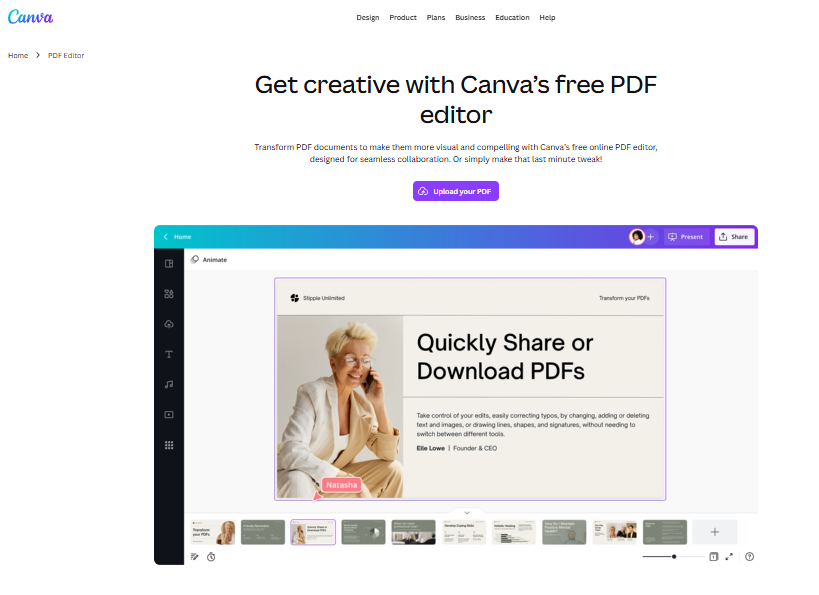
Canva is known as a graphic design platform, but now it also provides features for visually editing PDF files.
This feature is very useful if you want to beautify the appearance of documents, adjust the layout, or add graphic elements without having to use complex software.
How to use it:
- Log in to your account at Canva.com , then upload the PDF file you want to edit.
- Once the file is open, you can immediately change the layout, edit text, replace images, or add other design elements using the drag-and-drop system.
- Once finished, simply download it back in PDF format, ready to print or share.
Canva is perfect for creating presentations, proposals, or portfolio documents with a professional and attractive appearance.
16. Google Docs
Although not a PDF-specific application, Google Docs can help you edit PDF content quickly.
To do this, upload the PDF file to Google Drive, open it with Google Docs, and then edit the content as usual. Once finished, you can save it as a PDF
Conclusion
PDF editing is now part of everyday work and digital education. If you frequently fill out forms, create resumes, or submit assignments in PDF format, mastering PDF editing is a must-have skill.
Especially if you are preparing yourself to enter the world of work, internships, or digital freelancing

Lokesh Sharma is a digital marketer and SEO expert at TechJustify with a keen interest in emerging technology trends including AI, cybersecurity, and digital marketing tools for more than 5 years. He writes clear, actionable articles for tech enthusiasts and business leaders, simplifying complex topics like VPNs, automation, and generative AI.