

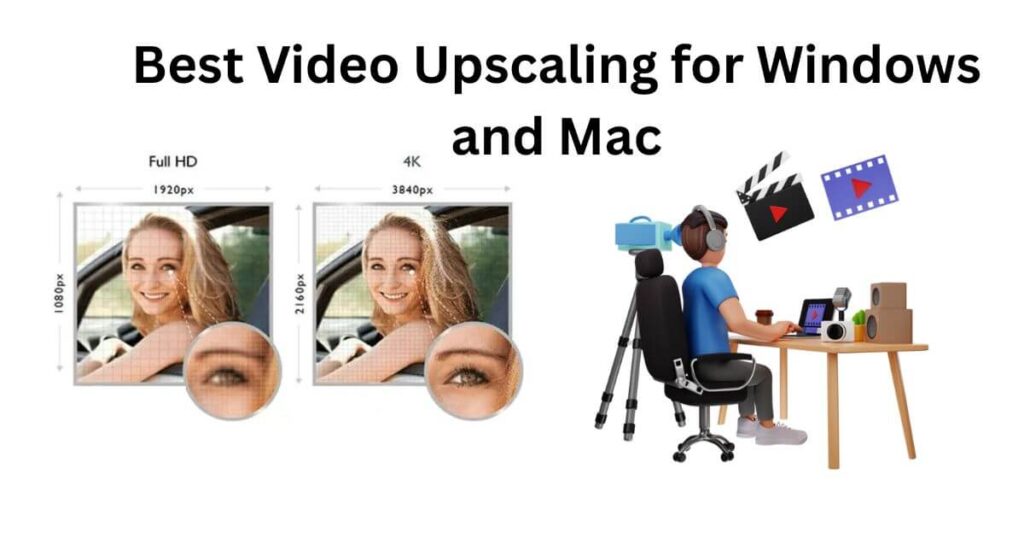
How to upscale video to 4K resolution without losing quality in 2025? Let’s explore the seven best video upscaling software options for Windows and Mac, along with their step-by-step guides.
Table of Contents
Introduction
In this digital age, the demand for crisp, clear, and ultra-high-definition (UHD) content has grown, but not all footage is recorded in high resolution. So, upscaling videos without losing quality becomes a necessity. Whether you’re editing a personal project, enhancing old recordings, or preparing content for professional use, having efficient software to upscale video is paramount.
In this article, you will walk through the seven best video upscaling software for Windows and Mac, along with their tutorials to help complete the task.
Part 1. Tips to Select the Best Video Upscalers Software
Choosing the right video upscaling software is a complex task, but here are a few points to consider before making your choice:
- AI-Powered Enhancement: Look for software that employs AI algorithms to upscale videos, preserving details and reducing artefacts.
- Compatibility: Make sure that the software is compatible with your system, whether it’s Windows or macOS.
- Resolution Support: Ensure the tool supports upscaling to your desired resolution, such as 4K or even 8K.
- Batch Processing: If you need to upscale videos in batches, find software that supports processing multiple files simultaneously to save time.
- User-Friendly Interface: An intuitive interface can make the upscaling process smoother and more efficient.
- Additional Features: Always choose a software that allows for various other video enhancement options besides upscaling.
Part 2. Top 7 Ways to Upscale Video on Windows & Mac in 2025
Here are seven powerful tools for Windows and Mac users with their key features, compatibility, and step-by-step guides to upscale video with ease:
1. HitPaw VikPea
Compatibility: Windows, Mac, iPhone/iPad, Android, Online
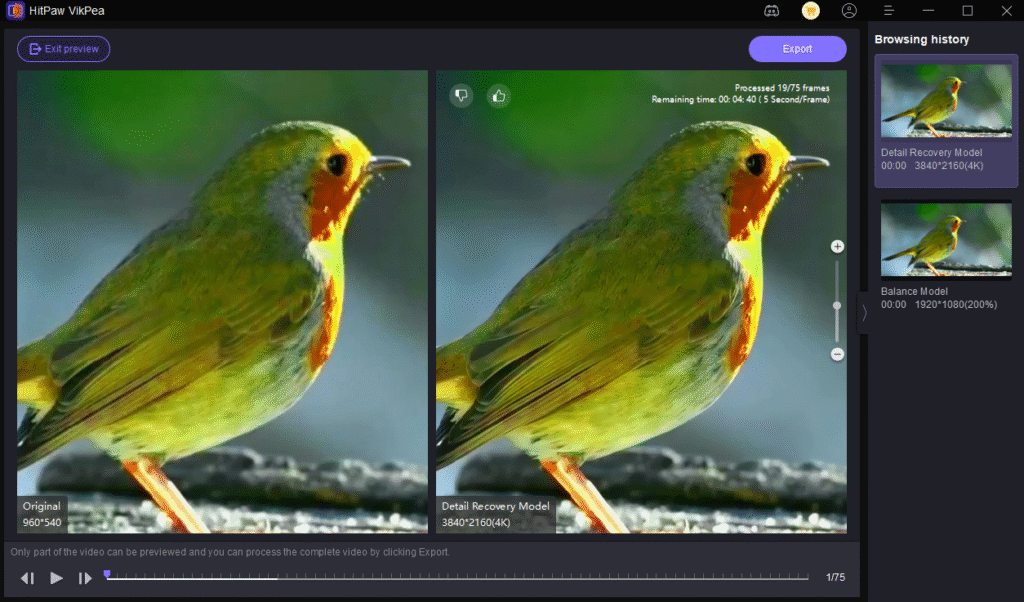
HitPaw VikPea is one of the best AI-powered video enhancers, allowing you to upscale videos from standard definition (SD) to 4K or 8K resolution by smoothly generating new pixels.
It can handle your grainy footage or low-quality videos really well, restoring clarity, sharpening edges, and balancing colours in a few clicks. Along with its intuitive controls and lightning-fast processing, you can enjoy professional-quality output.
Also, its detail preservation and noise reduction features make it an ideal choice for those seeking a seamless upscaling experience. You can even preview the results before exporting for a side-by-side before/after comparison.
Main Features:
- Upscale video from 720P to crisp 4K resolution without hassle
- Restore natural skin tones and landscapes with colour correction
- Deliver ultra-smooth motion in videos with AI frame interpolation
- Batch processing capability to upscale numerous videos at once
- Repair damaged or unplayable video files with one-click AI Fix
How to Upscale Videos using HitPaw VikPea:
Step 1. Choose File
After downloading and installing this program, launch it and click “Choose File” to upload the required video.
Step 2. Select AI Model
Now, choose the preferred AI enhancement model, such as the “General Restoration Model” under “General Model.”
Step 3. Adjust Export Settings
In the next step, select the “4x Upscale” resolution option under “Export Settings.”
Step 4. Preview and Export
Lastly, press the “Preview” tab under the video, and if it meets your needs, hit “Export” to save it to your device. That’s it!
2. TopazLabs
Compatibility: Windows, Mac, Online
TopazLabs offers an industry-leading video upscaler tool that uses machine learning algorithms to enhance footage quality while preserving details and improving clarity. It can upscale video to 1080P or 4K resolution, delivering high-quality output in seconds. It also helps reduce pixelation, noise, and blurriness. Here is how to use it:
Step 1. Install and launch this software, and click “Add Video” to upload the video file.
Step 2. Now, choose the “AI Model,” “Video Format,” and set it to 4K resolution.
Step 3. Press “Preview” and then “Start Processing” to save the upscaled video.
3. Video2X
Compatibility: Windows, Mac, Linux
Video2X is a free, Python-based open-source software to transform low-resolution clips into sharper, vibrant footage. Along with batch processing, it uses multiple upscaling engines to deliver the best possible results. It even provides customizable parameters for denoising, scaling factor, and model selection. Let’s follow the given steps:
Step 1. Download it from GitHub, extract the ZIP file, and launch the GUI.
Step 2. Now, upload a video file, and choose upscaling as the processing mode.
Step 3. Adjust settings such as resolution and output format, and then click “Start.”
4. VideoProc Converter
Compatibility: Windows, Mac
VideoProc Converter is a versatile software that includes an AI video upscaling tool. It offers a Super Resolution module that enables users to upscale video to 4K without losing quality at an 80% speed boost. With its upgraded V3 model, it even lets you denoise, deblur, enhance, and restore details. Here is the tutorial:
Step 1. Launch the VideoProc Converter AI tool, click “Super Resolution,” and import your video.
Step 2. Select the AI model, mode, and upscaling option under “Model Settings.”
Step 3. Adjust the output format and hit “RUN” to start exporting.
5. Aiarty Video Enhancer
Compatibility: Windows, Mac
Aiarty Video Enhancer is another excellent video upscaling tool with versatile AI models. It offers great features such as video/audio denoising, deblurring, colourizing, and restoring flawed videos to 4K resolution. Along with batch processing, you will get superb quality by generating new frames at a 3X speed. Let’s follow the procedure:
Step 1. After launching this software, click “Import” to upload the required video.
Step 2. Choose the “AI Model,” set “Upscale” to x4, and adjust the other settings.
Step 3. Later, you can preview, change the “Export Settings,” and then hit “Export Current” or “Batch Export.”
6. AVCLabs
Compatibility: Windows, Mac, Online
AVCLabs Video Enhancer and Upscaler leverage deep learning algorithms to upscale videos to HD, 4K, and 8K resolution. It offers super-resolution upscaling and multi-frame enhancement with maximum quality preservation. You can also enhance details, colourize, improve contrast, fix blurry or shaky footage, and remove grain or noise at a fast speed. Here is how it works:
Step 1. Once you have installed and launched this software, drag & drop the video.
Step 2. Select “Upscale to 4K” under “Presets.” Also, adjust the output and video settings.
Step 3. After choosing the parameters, click the “Start Processing” button to render the video.
7. DVDFab AI Upscaler
Compatibility: Windows, Mac
DVDFab AI Upscaler is another fantastic tool for increasing your video resolution to SD, HD, 4K, and even 8K in DVD Ripper and Blu-ray Ripper modules. With AI technology, it also enhances the sharpness, texture details, and colour gradation in every frame, thereby upscaling videos without compromising the original footage quality. Let’s comply with the given steps:
Step 1. Open DVDFab and drag & drop the ISO file or folder into the main interface.
Step 2. Now, select the “AI Upscaler” option and pick the format in this category.
Step 3. Lastly, press “Advanced Settings” to customize the output. Then, hit “Start.”
Part 3. FAQs about Video Upscaling
1. Which video upscaler is the best?
The best video upscaling tool is HitPaw VikPea, which utilizes advanced AI models to help upscale video to 4K or 8K resolution, enhance colours, remove noise, and restore details.
2. What are the limitations of video upscaling?
While video upscaling significantly improves resolution, it can’t create details that were never there. So, excessive upscaling may also result in artefacts, blurriness, or other visual distortions.
Conclusion
Upscaling videos to 4K or higher resolution can breathe new life into old or low-quality content. From the tools listed in this article, you can choose any to upscale videos seamlessly while maintaining or improving their quality.However, HitPaw VikPea is the top choice if you need an easy, powerful, and effective solution to upscale your videos. Try it today to enhance your video quality to new heights!

Pradeep Sharma is a author the mind behind Techjustify, where I craft insightful blogs on technology, digital tools, gaming, AI, and beyond. With years of experience in digital marketing and a passion for tech innovation, I aim to simplify complex topics for readers worldwide.
My mission is to empower individuals with practical knowledge and up-to-date insights, helping them make informed decisions in the ever-evolving digital landscape.